Your NAS.
All in one app.
Holiday photos, a document you need tomorrow, a file downloading back home. With Naseon, it’s all right there on your iPhone, straight from your Synology.
In development for iPhone.
Swipe to see the other screens.
Downloads
Start on your iPhone. Let your NAS finish.
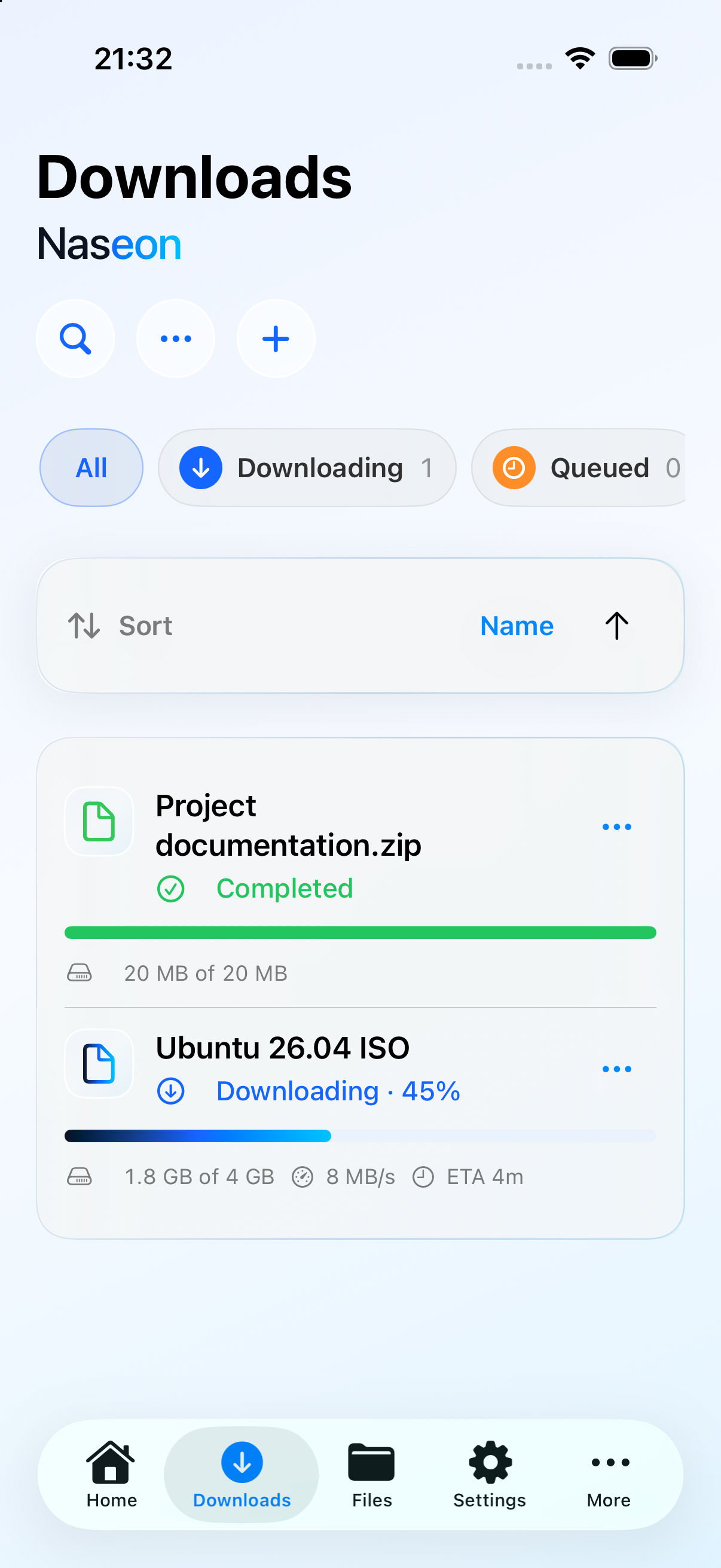
Out of the house? Paste a link into Naseon and start the download. Close the app whenever you like. Your NAS keeps downloading the file.
Check the download list later. When the file is ready, use its menu to open the folder in Naseon’s Files tab.
Away from home, you’ll need remote access to your NAS.
Photos
Find that favourite photo from years ago
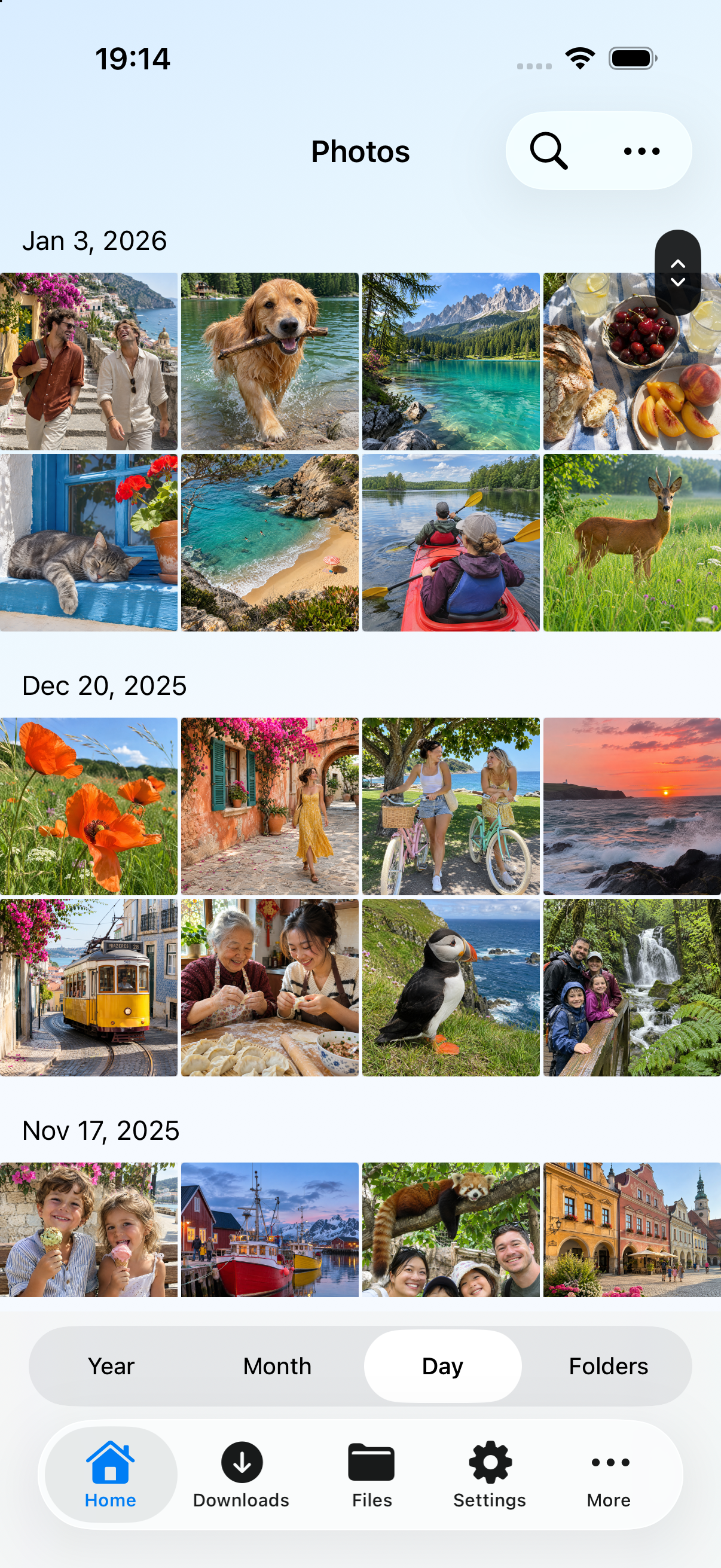
Open your Synology Photos library in Naseon to show someone a favourite holiday photo on your iPhone. If your NAS still has room for new photos, you may be able to put off upgrading your cloud plan.
Files
Keep your booking confirmation handy
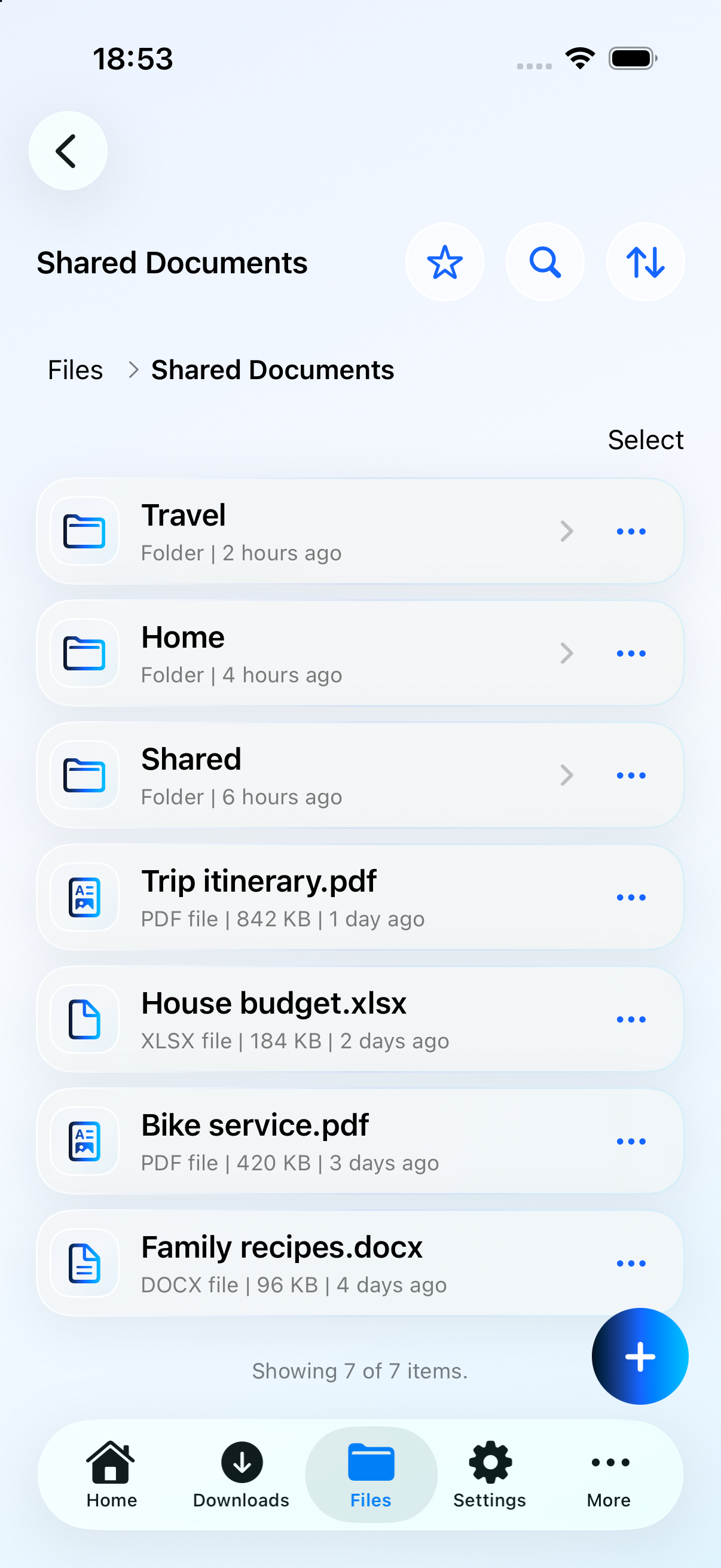
Open a folder on your NAS and choose which document to save to your iPhone. Pull up your booking confirmation at check-in, even without a signal.
Server status
How much space is left?
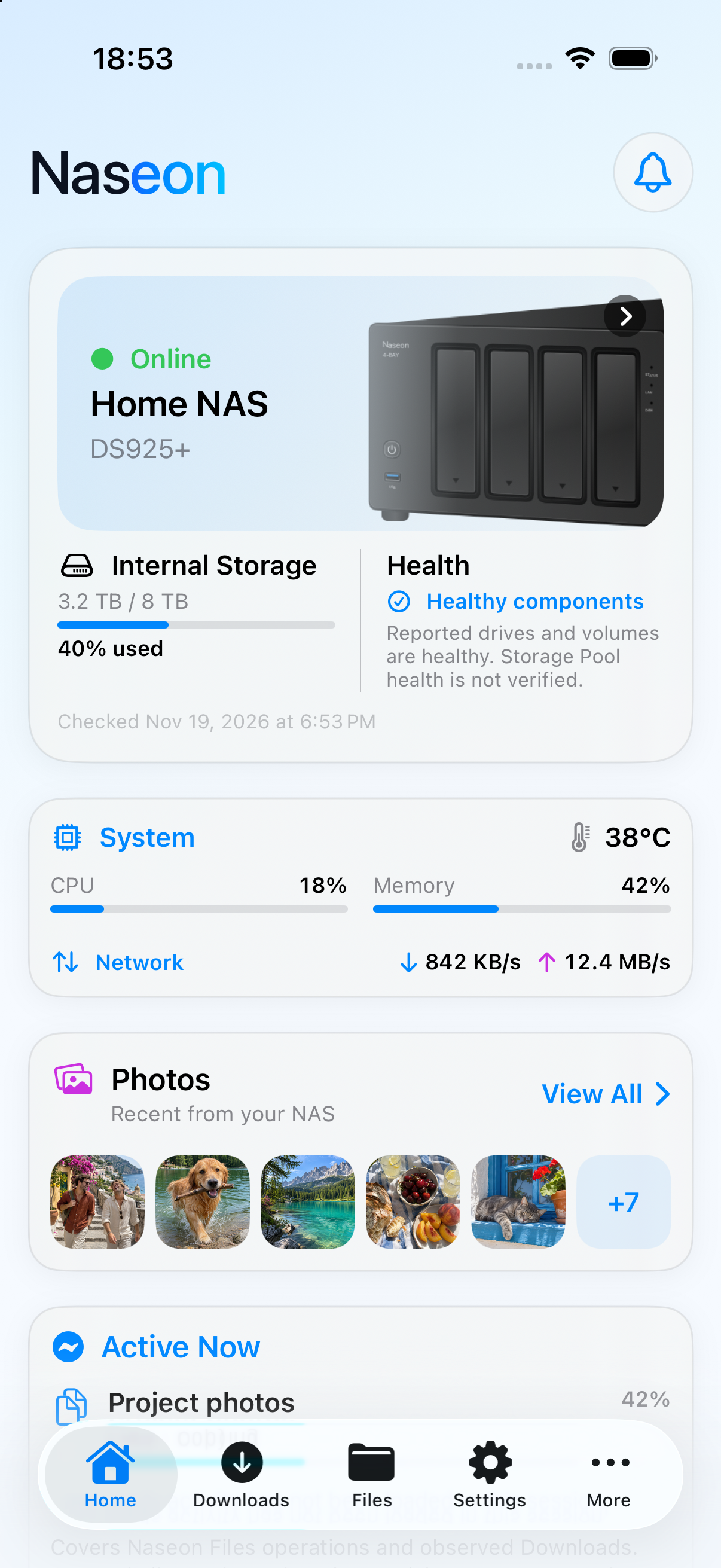
Check the home screen before you copy a large folder. In this example the NAS is online, 3.2 of 8 TB is in use, and the drives and volumes are healthy.
Privacy
Sign in with your NAS account
Your NAS account determines which files and folders you can open in Naseon. If you choose to save your sign-in details, they’re stored in your iPhone’s Keychain.
Read about privacy
Naseon for iPhone
The App Store link will be here when Naseon launches.